
PDF Editor
Free app to edit, merge, and sign PDFs
Free app to edit, merge, and sign PDFs
Last updated: 2026-11-09
Merging PDFs puts the pages of two or more files into one PDF. In PDF Editor, you do it from the Pages sidebar, where the same commands also reorder, rotate, copy, and remove pages. This guide follows one merge from start to finish. It combines a three-page design brief, coastal-field-notes.pdf, with a two-page tide log to make one five-page PDF.
Here are some real-world examples:
The example PDFs were made for these guides. Select any picture to see it at full size.
Start with the PDF whose pages come first. The merged PDF keeps this file's name, and saving writes the merged pages to this file. If you want to keep the original as it is, the last section explains how.
Inserted pages go after the page you select. To add the second PDF at the end, select the last page.
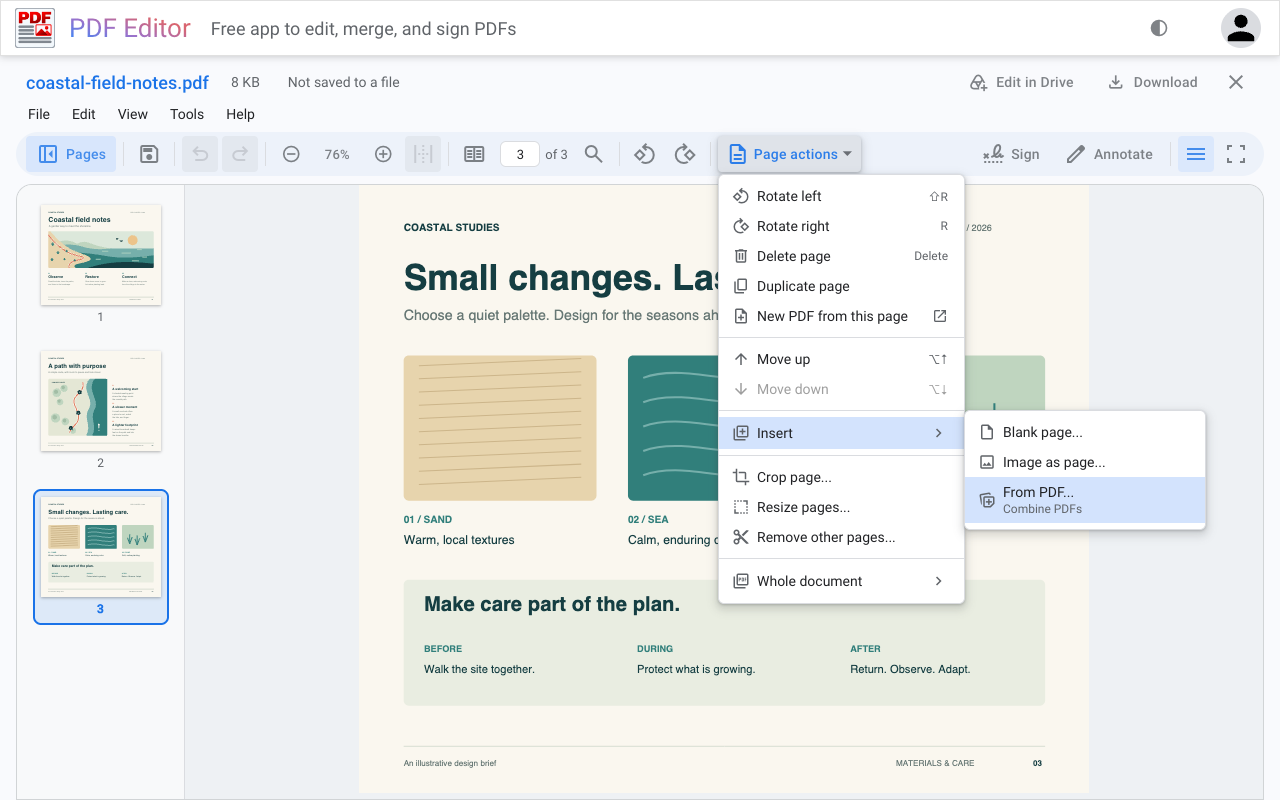
To combine more than two PDFs, repeat these steps for each file, selecting the new last page each time. You can also right-click the empty space below the last thumbnail and choose Insert from PDF at end..., which needs no selection.
Scanned pages and wide tables often arrive on their side. In the example, the tide log's table was saved sideways, so after the merge it shows up as page 5, a quarter turn off.
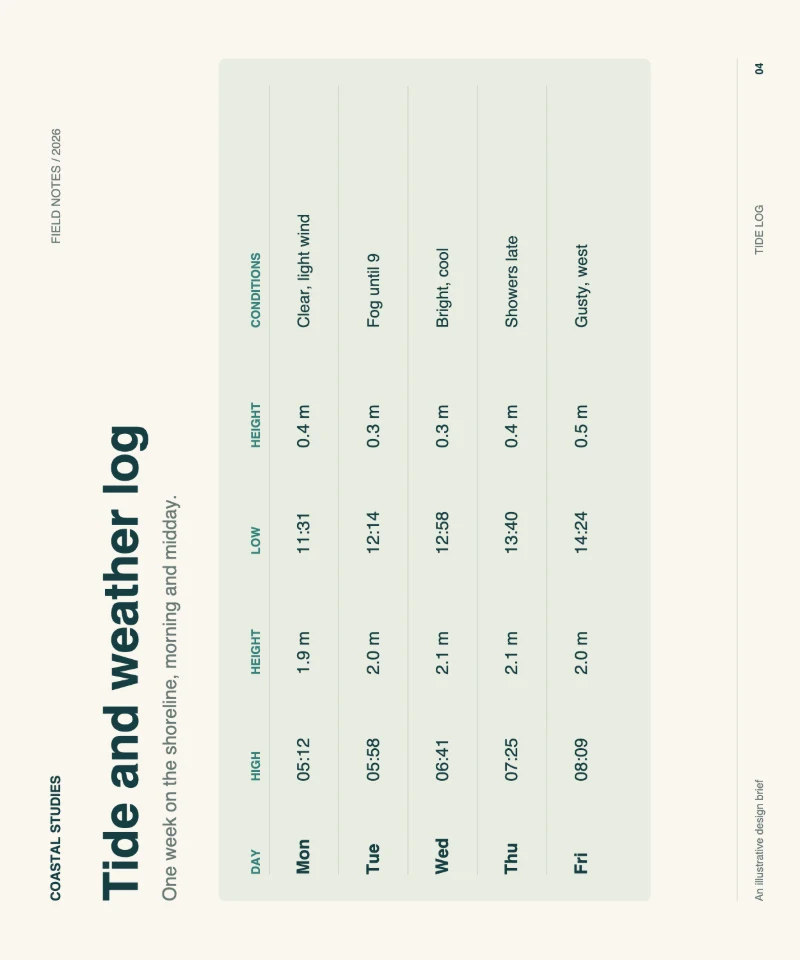
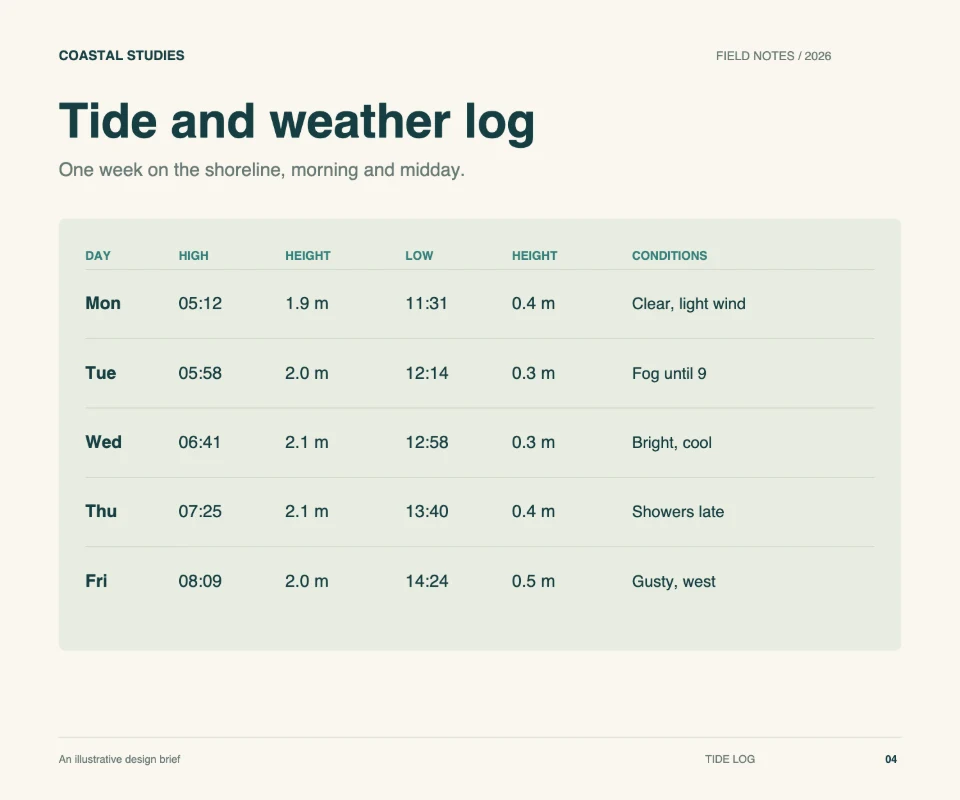
To turn several pages together, hold Shift or Ctrl (Cmd on a Mac) as you select them, then rotate. The rotation is saved in the PDF, so the page also opens the right way up in other PDF readers and prints that way.
The quickest way to move a page is to drag its thumbnail up or down in the sidebar and drop it where it belongs. For a move of one or two places, select the page and choose Move up or Move down in Page actions, or press Alt+Up or Alt+Down.
In the example, the "What we noticed" page sums up the tide log, so it reads better after the log. Select the tide log and choose Move up. The log becomes page 4 and the summary page 5.
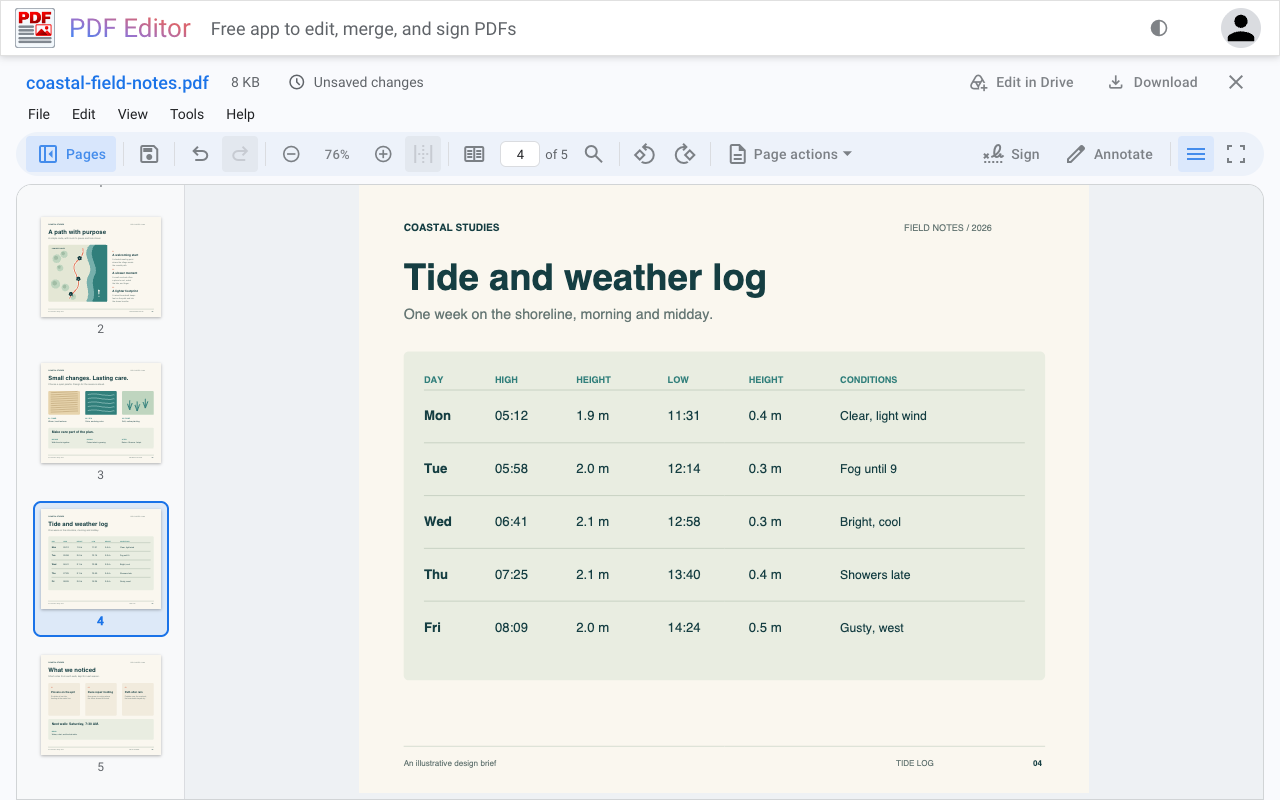
To select every page, right-click below the thumbnails and choose Select all pages. Selected pages move, turn, and delete together.
Page actions holds the rest of the page tools. Most of them work on the pages you select.
Sometimes you need only part of a PDF, such as one chapter of a manual or the two pages of a contract that someone else has to sign. Select those pages, then choose Page actions > New PDF from these pages, or New PDF from this page for a single page. The new PDF opens in a new tab with the pages you selected, including changes you haven't saved yet. Your original PDF stays as it is.
Remove other pages... does the same job in place. It trims the open PDF down to the pages you keep. Autosave can write that change to your file, so make a copy first if you still need the full PDF.
Every page change can be undone, one step at a time. Select Undo in the toolbar or press Ctrl+Z (Cmd+Z on a Mac). Edit > Revert all changes... goes all the way back to the PDF you opened.
Until you save, the status beside the filename reads "Unsaved changes" or "Draft saved". "Draft saved" means PDF Editor has kept a backup of your edits in this browser. Your PDF file still needs saving.
When the pages look right, choose how to keep the result:
For a PDF in Google Drive, Save writes to the Drive file when you have edit access. Save and export in PDF Editor Help covers every option.
The example PDFs are illustrative files made for these guides. Every screenshot was taken in PDF Editor. The page images were saved with File > Export > Pages as images... at Print (150 dpi) and reduced in size for this page.