How to turn images into a PDF, and a PDF into images

Last updated: 2026-11-09

PDF Editor turns JPEG and PNG pictures into a PDF, and PDF pages into images. A picture of a receipt can become a PDF for an expense report, and a page of a PDF can become an image for a slide or a post. This guide makes a PDF from three pictures, places a picture on a page of a report, and then saves PDF pages as images.

Here are some real-world examples:

  • A renter takes a picture of each page of a signed lease and sends them as one PDF.
  • A parent turns pictures of a child's artwork into a small book to print.
  • A presenter saves one page of a report as a PNG to put on a slide.
  • A volunteer adds a group picture to the last page of a newsletter.

The pictures are public domain, from the U.S. Fish and Wildlife Service, and the source links in the captions credit the people who took them. The report is an illustrative PDF made for these guides. Select any picture to see it at full size.
Make a PDF from images

  1. Open PDF Editor and select Create New PDF.
  2. Choose File > New PDF from images....
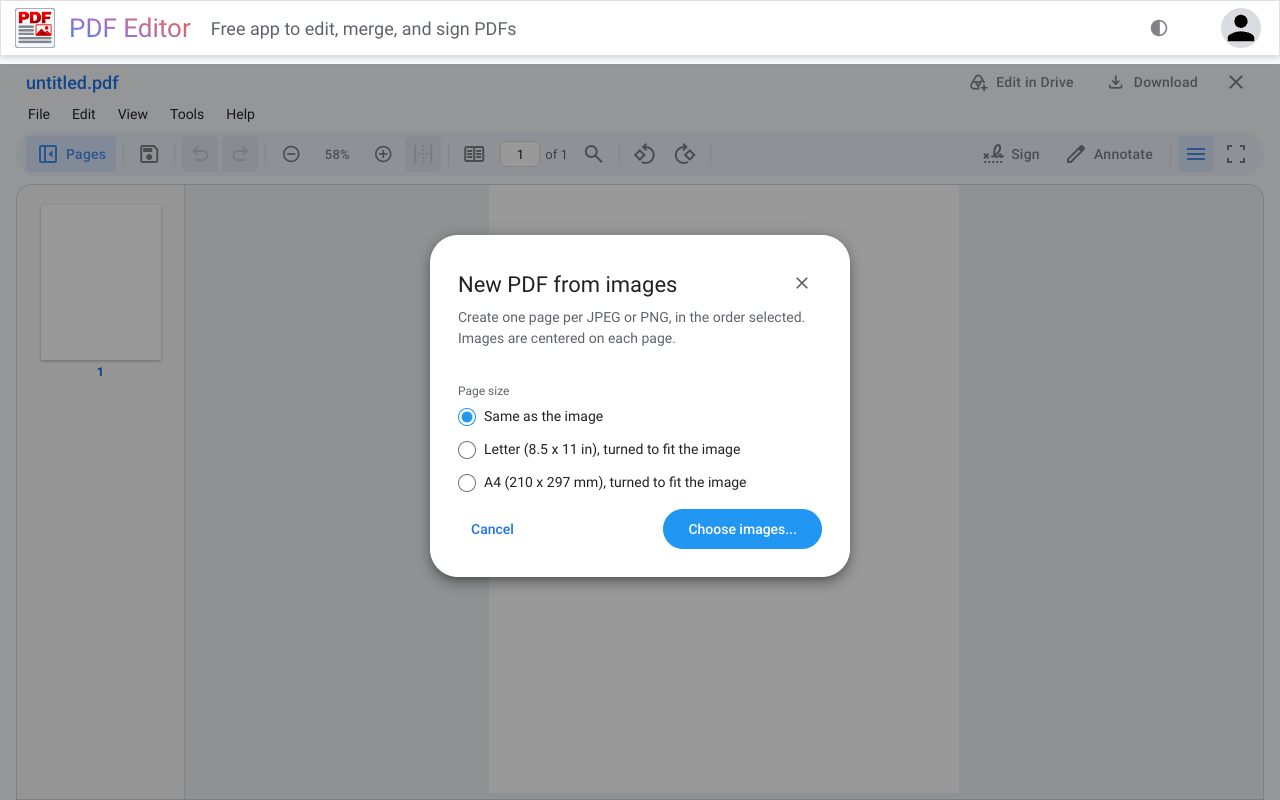
  3. Select a Page size. Same as the image makes each page the size of its picture, which suits a PDF you will read on a screen. For a PDF you will print or attach to a form, select Letter or A4. Those pages turn to fit each picture, so a wide picture gets a landscape page, and each picture is centered on its sheet.
  4. Select Choose images... and choose the JPEG or PNG files. Each picture becomes a page.
The New PDF from images dialog, with Same as the image selected and a Choose images button.
New PDF from images. Same as the image makes each page the size of its picture.
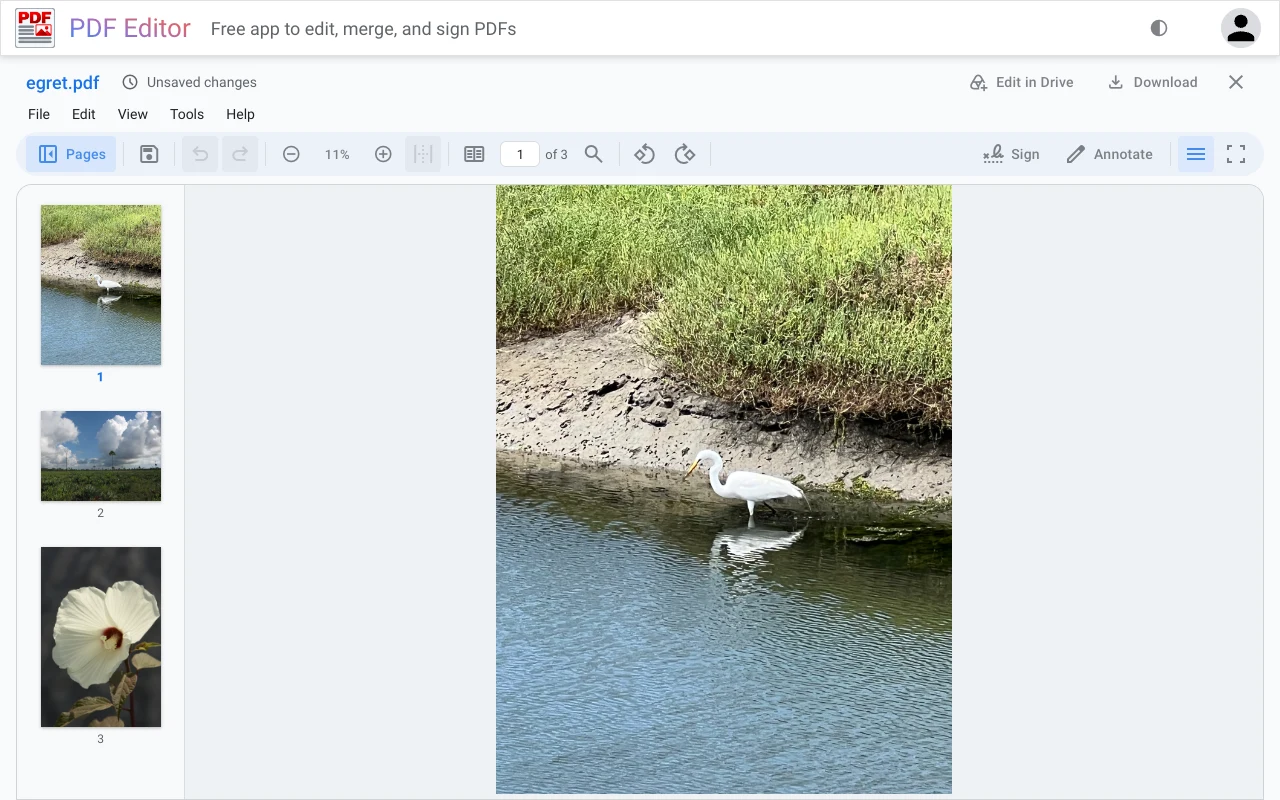
PDF Editor showing a new three-page PDF named egret.pdf: an egret wading in a channel, a scrub landscape under clouds, and a white flower.
Three pictures, three pages. The PDF takes its name from the first picture, egret.pdf. To change the order, drag the thumbnails in the Pages sidebar.Pictures: Jessica D'Ambrosio/USFWS, James Lyon/USFWS, and Steve Hillebrand/USFWS. Public domain.

Phone pictures are large. At Same as the image, one picture can make a page several feet tall, which is why PDF Editor shows these pages at 11%. Every page size keeps the picture at its full quality.

Add an image as a page in an existing PDF

To add a scanned receipt or a picture to a PDF you already have, select the page it should follow in the Pages sidebar. Then choose Page actions > Insert > Image as page... and choose one or more JPEG or PNG files. Each picture becomes a new page the same size as the selected page, added after it.

Place a picture on a page

The Image tool in the Annotate panel puts a picture on an existing page instead of adding a page, such as a logo on a letter.
  1. Show the page, then select Annotate and Image.
  2. Choose a JPEG or PNG. It lands on the current page, selected.
  3. Drag a corner to resize it, then drag the picture into place.
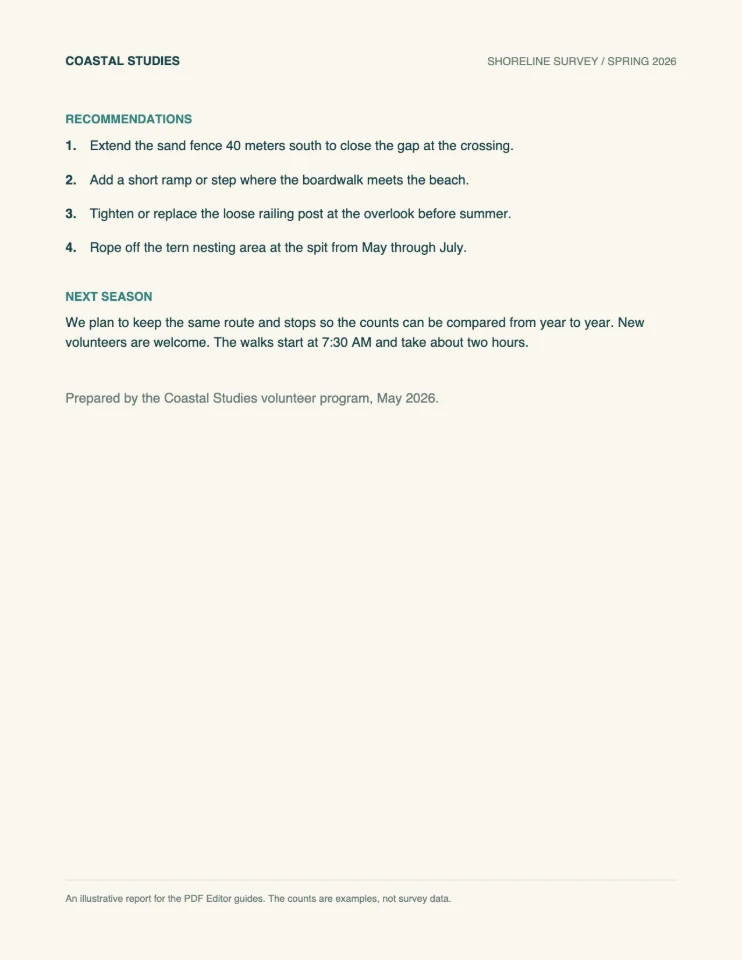
Page 3 of the survey report with recommendations, plans for next season, and a closing line above empty space.
Before: As opened The last page of the survey report ends with its closing line and empty space.
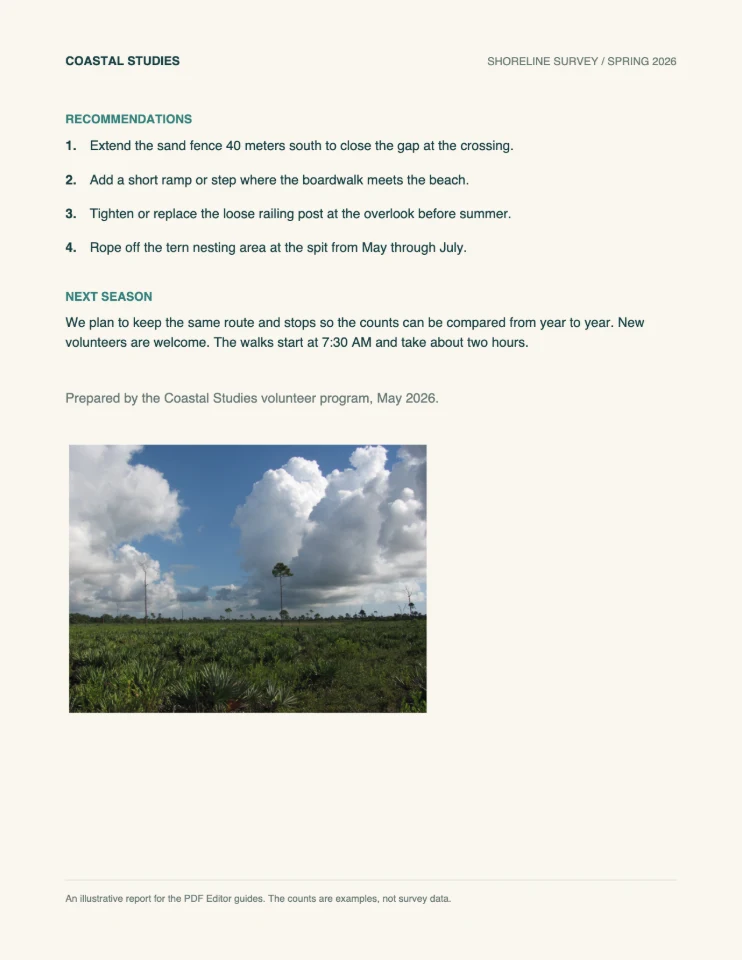
The same page with a picture of green scrub under tall white clouds below the closing line.
After: Image, resized and placed The scrub landscape picture, resized to about four inches wide, sits under the closing line.Picture: James Lyon/USFWS. Public domain.

The picture is saved as an annotation on the page, like a note or a stamp. To make a picture a page of its own, use Insert > Image as page... instead.
Save PDF pages as images

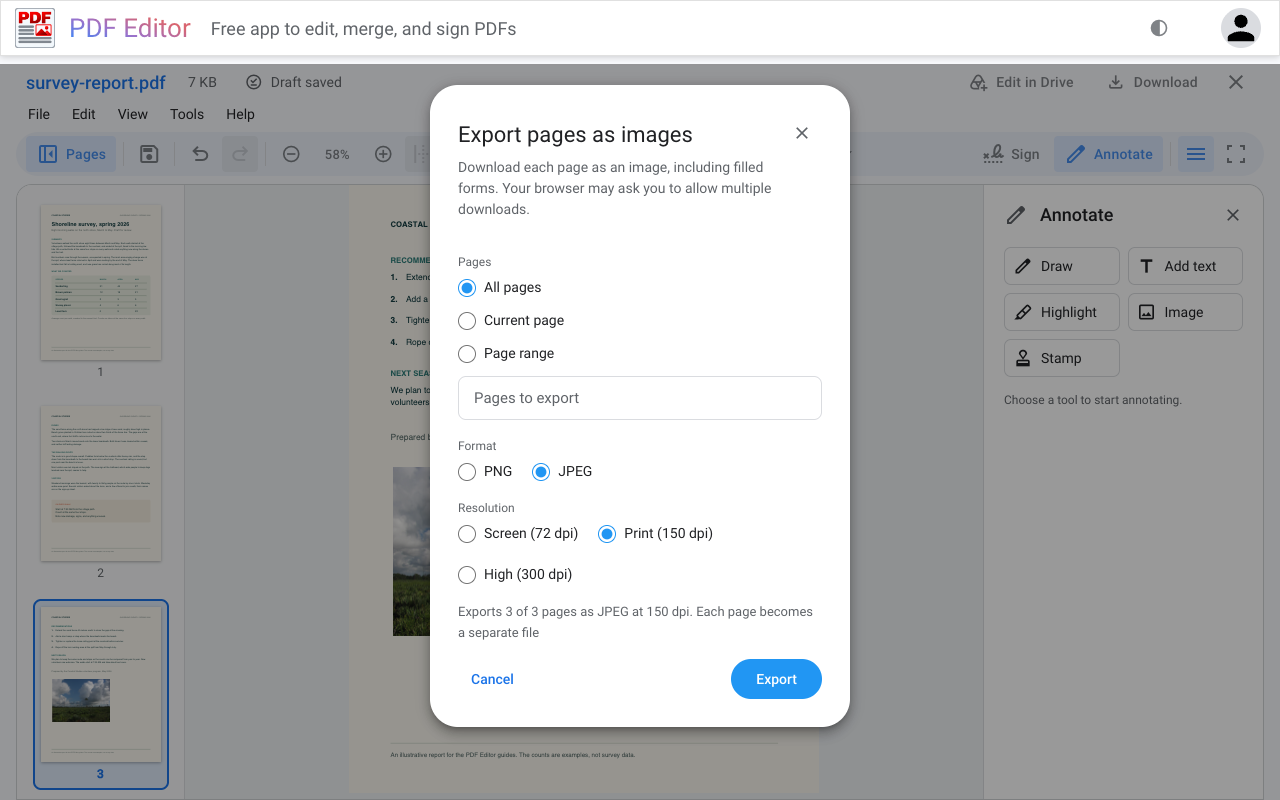
  1. Choose File > Export > Pages as images....
  2. Under Pages, select All pages, Current page, or a Page range such as 2-5, 8.
  3. Select a Format and a Resolution, then Export. Each page downloads as its own file.
The Export pages as images dialog with All pages, JPEG, and Print (150 dpi) selected.
Export pages as images. The line above the buttons confirms the choice. Here it starts "Exports 3 of 3 pages as JPEG at 150 dpi."

PNG keeps text and lines sharp and suits pages that are mostly text. JPEG makes smaller files from pages that are mostly pictures. Screen (72 dpi) is enough for a web page or a message, Print (150 dpi) suits a slide or a printout, and High (300 dpi) keeps fine print sharp. Filled-in forms and annotations are included, just as you see them.

When you export several pages, your browser may ask whether to allow multiple downloads. Allow it, or only the first page will download.

Other ways to get images and text out

  • File > Export > Embedded JPEG images downloads the JPEG pictures stored inside the PDF, as they are stored. It is the way to get the original JPEGs back out of a PDF made from them. It does not turn pages into images. Use Pages as images... for that.
  • File > Export > Text as .txt downloads the text of the PDF as plain text. A scanned page is a picture, so it may have no text to export.
  • File > Print... prints all pages, the current page, or a range, including filled forms and annotations. Pages print as 150 dpi images.

Sizes and limits

PDF Editor adds JPEG and PNG images up to 25 MB each. Other formats need to be converted first. On a Mac, open the picture in Preview and choose File > Export, with JPEG as the format. On an iPhone, Settings > Camera > Formats > Most Compatible makes the camera save new pictures as JPEGs.

If a PDF made at Same as the image needs to print on standard paper later, Page actions > Resize pages... fits each page onto Letter or A4 and centers it. Resize before you add notes or fill in a form, because PDF Editor can't resize pages that have annotations or form fields. Images, exports, and large files in PDF Editor Help lists the other limits.

The pictures are public domain, and the links in the captions lead to the original files. The report is an illustrative PDF made for these guides. Every screenshot was taken in PDF Editor. The page images were saved with File > Export > Pages as images... at Print (150 dpi) and reduced in size for this page.